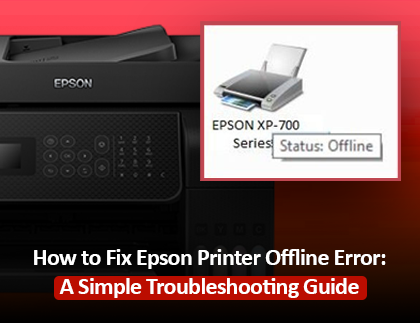
Epson printers are known for their reliability and superior print quality, but even the best devices can encounter occasional issues. One of the most common problems users face is the “Printer Offline” error. This issue can be frustrating, but it’s often easy to fix with the right steps.
In this guide, we’ll cover the causes of the Epson printer offline error and provide a comprehensive troubleshooting process to resolve it.
What is Epson Printer Offline Error
If you are seeing an Epson printer offline error on your printer, it means that your printer is not able to communicate with the computer or vice versa. The printer might seem connected to the computer but the status will show Offline. It happens due to connectivity issues, incorrect settings, or outdated drivers.
Common Reasons for Epson Printer Offline Error
Connectivity Issues
- The USB cable connecting the printer to the computer might be loose.
- The Wi-Fi signal might not be strong which is why the Epson printer is not connecting to the printer
- The network settings might be wrong disrupting the connection
Outdated or Corrupted Printer Drivers
- The printer drivers that you have installed might be corrupted or not compatible with the model no. of your printer
- The Printer driver might be outdated which will interfere with the communication between the computer and the printer
Printer Settings Errors
- If the printer is not set as the default device or if the “Use Printer Offline” option is enabled, the error may occur.
- For wireless printers, changes to your network’s configuration or IP address can lead to the printer appearing offline.
Software Glitches
Temporary glitches in the printer’s firmware or your computer’s operating system can also trigger the offline error.
How to Fix Epson Printer Offline Error
Follow these step-by-step solutions to resolve the issue and get your printer back online.
1. Check Printer Connections
For Wired Printers:
- Ensure the USB cable is securely connected to both the printer and your computer.
- If the cable is damaged, replace it with a new one.
For Wireless Printers:
- Check that the printer is connected to the correct Wi-Fi network. Navigate to the printer’s control panel and verify the network settings.
- Restart your router and printer to refresh the connection.
2. Set the Printer as the Default Device
On Windows:
- Open control panel
- Navigate to Devices and Printers
- Right-click on your Epson printer and choose the option of Set as Default Printer
- Click on your Epson printer and check the status of the printer if it is Ready
On Mac:
- Navigate to system preferences
- Go to the Printers and scanners option
- Select your Epson printer and make sure that the printer has been marked as the default device
3. Disable the ‘Use Printer Offline’ Setting
Ensure your printer isn’t set to work offline.
- Go to Devices and Printers option from the control panel of the Windows computer
- Right-click on Epson printer and click on See Whats’ Printing
- On the top menu, click on Printer and uncheck the option of Use Printer Offline
4. Restart the Print Spooler Service
- Open the Run command box by Pressing the Windows and R key at the same time
- In the search box, type services.msc and hit the Enter key or click on the Run button
- From the list of services, find Print Spooler
- Click on Print Spooler and then click on Restart
- Try printing a test page to check the spool service
5. Update or Reinstall Printer Drivers
- First uninstall the already installed driver, to do so open Control Panel
- Click on Devices and Printers
- Right-click on the Epson printer and click on the Remove Device option
- For the Mac system, you can go to the Printers and Scanners option from the system preferences
- After uninstalling the drivers, visit Epson’s official website
- Click on the support section and search for model no. of your printer
- Click on the Driver download option
- Install the latest driver and restart the computer
6. Verify the Printer’s Network Configuration
- Check the IP address of the printer from the network settings
- If there is a mismatch, update the IP address in the port settings of the printer
7. Reset the Printer and Network
- Turn off the printer
- Unplug it from the power source, and wait for 2-3 minutes before plugging it back in and restarting it
- Restart your router and reconnect the printer to the Wi-Fi network
Epson printer offline error can be fixed through 7 easy steps if you follow this comprehensive guide. From checking the printer connections to resetting the printer and network, every step has been covered and detailed. We have made it easy for a novice user to fix the Epson printer offline error. If you are not able to fix the error and the Epson printer is still offline, feel free to get in touch with us.